Platform Integrations > Zen Cart
Zen Cart
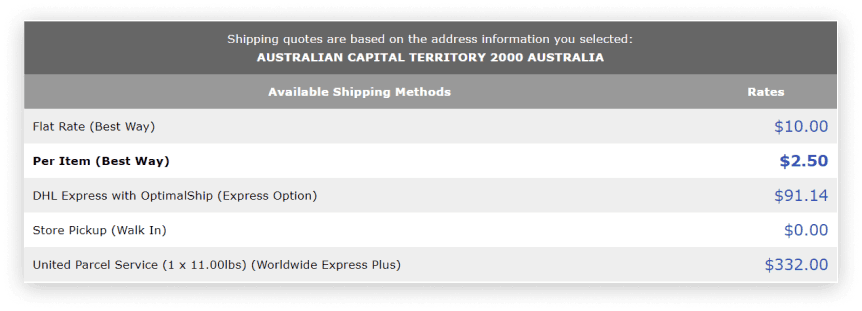
Download the latest version of the Zen Cart plugin (version 1.0.1) below. Once installed in Zen Cart, this plugin will show your DHL Express through OptimalShip rates in your online store.
Steps to Configurate Zen Cart Account
- Extract the contents of the Zip and move the files into their respective locations in your store's installation files. The file path should match the Zip file from your site's root folder. There are two files to add: one to
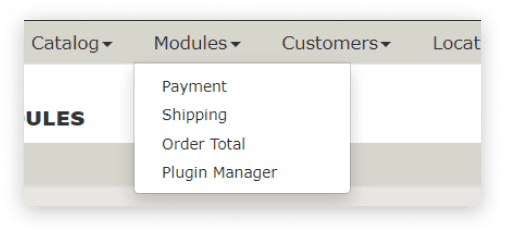
root\includes\modules\shipping\and the other toroot\includes\languages\english\modules\shipping\. - From your store's admin page, go to Modules and select Shipping.
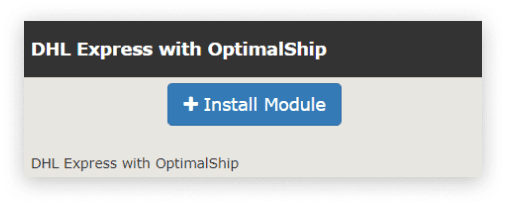
- Find the module named DHL Express with Optimalship under Shipping Modules. If necessary, click Install Module.
- Once the module is installed, edit the settings as needed:
- Enable DHL Express Shipping: Select True to enable DHL Express rates in your store's shopping cart.
- OptimalShip Account Number: Enter your account number provided by OptimalShip.
- Shipping Surcharge: Add a flat fee to your shipping rates for your clients. Enter '0.00' for no fee.
- Shipping Zone: Select shipping zones where you would like to display DHL Express shipping rates.
- Sort Order: Adjust number to order DHL Express against other shipping methods offered.
Click Update to save configuration.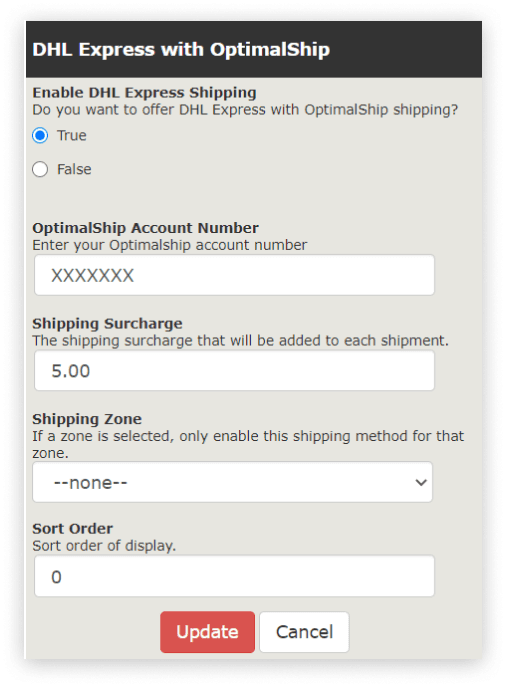
- DHL Express with OptimalShip will now appear as a shipping option for international shipments.