Platform Integrations > Drupal-Ubercart
Drupal-Ubercart
To install the module, you will need to download the Zip file below:
Steps for Drupal-Ubercart integration:
- Install OptimalShip module
- Go to the Admin Panel of your Drupal/Ubercart store. Click Modules.

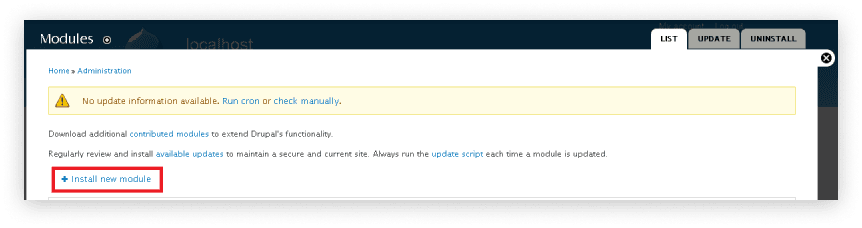
- Click Install new module in the Modules window.
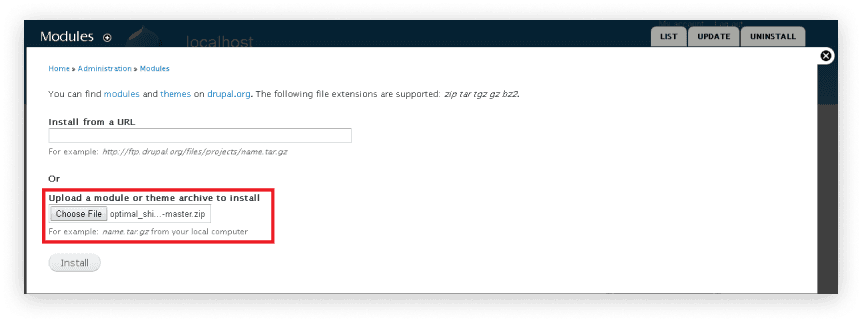
- Click Choose File and find the download module Zip file. Click Install.
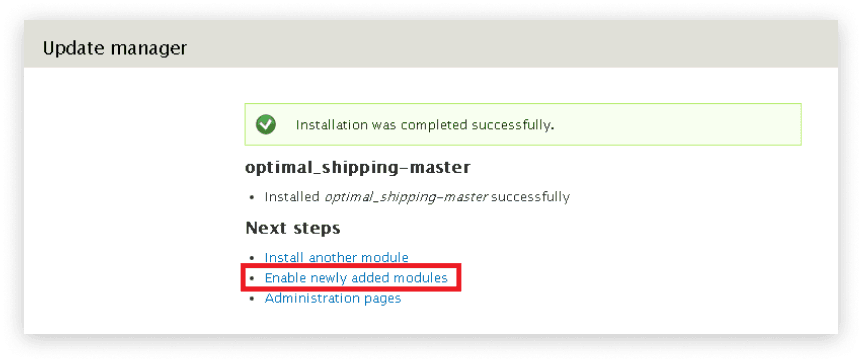
- The Update Manager should show that the installation was successful. Then click Enable newly added modules.
- Go to the Admin Panel of your Drupal/Ubercart store. Click Modules.
- Enable OptimalShip Module
- Scroll down to the section entitled UBERCART-FULFILLMENT and click the checkbox for OptimalShip. If needed, enable any required modules listed for the OptimalShip module.
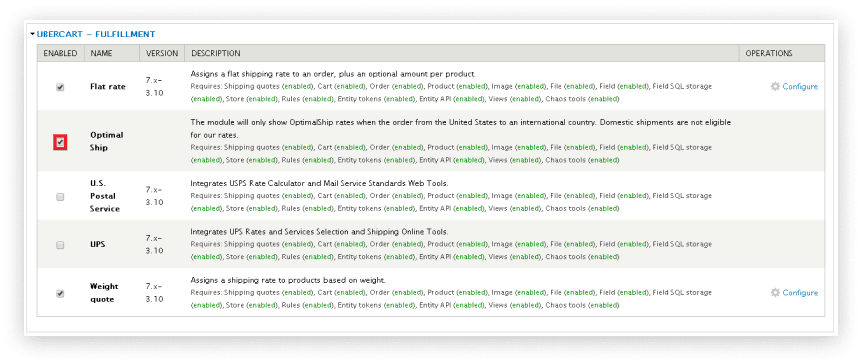
- Click Save configuration.

- Scroll down to the section entitled UBERCART-FULFILLMENT and click the checkbox for OptimalShip. If needed, enable any required modules listed for the OptimalShip module.
- Configure OptimalShip Module
- Scroll back down to the section entitled UBERCART-FULFILLMENT and click the Configure link for OptimalShip.

- In the Shipping Quotes window, click on the OPTIMAL button.

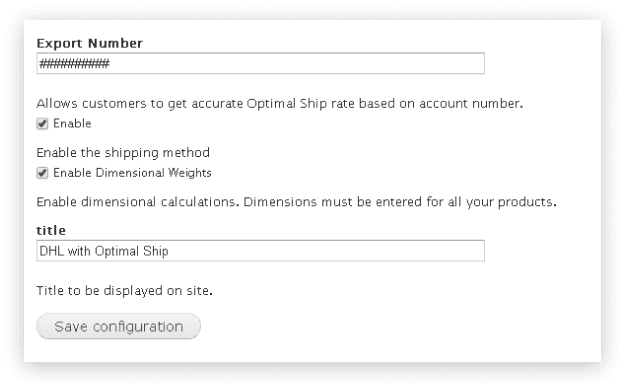
- Enter your OptimalShip Export Number. Click both checkboxes to enable the rates and to calculate dimensional weights based on package dimensions. Click Save configuration.
- Scroll back down to the section entitled UBERCART-FULFILLMENT and click the Configure link for OptimalShip.
- Verify Functionality
- DHL with OptimalShip should now appear in your store's shopping cart for international shipping destinations.
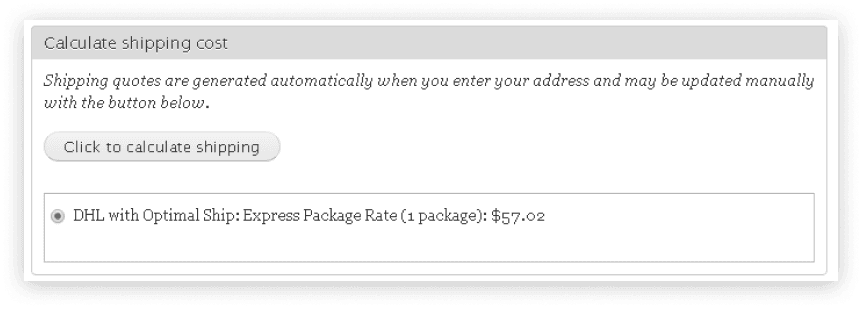
- DHL with OptimalShip should now appear in your store's shopping cart for international shipping destinations.